 Keet Support
Translate Messages 🌐
Translate received text messages directly inside the chat, with the translation kept private to you.
The Translate action lets you read received text messages in your own language without leaving the chat. Translation happens locally on your device — the original message is never changed, and the translated text is only visible to you. It is not stored in core or synced to other peers.
Message translation is available from Keet 4.16.0. 🌐
For V1, only directly supported language pairs are included. Non-English → non-English translation is out of scope for now. 🌍
Open the Translate action
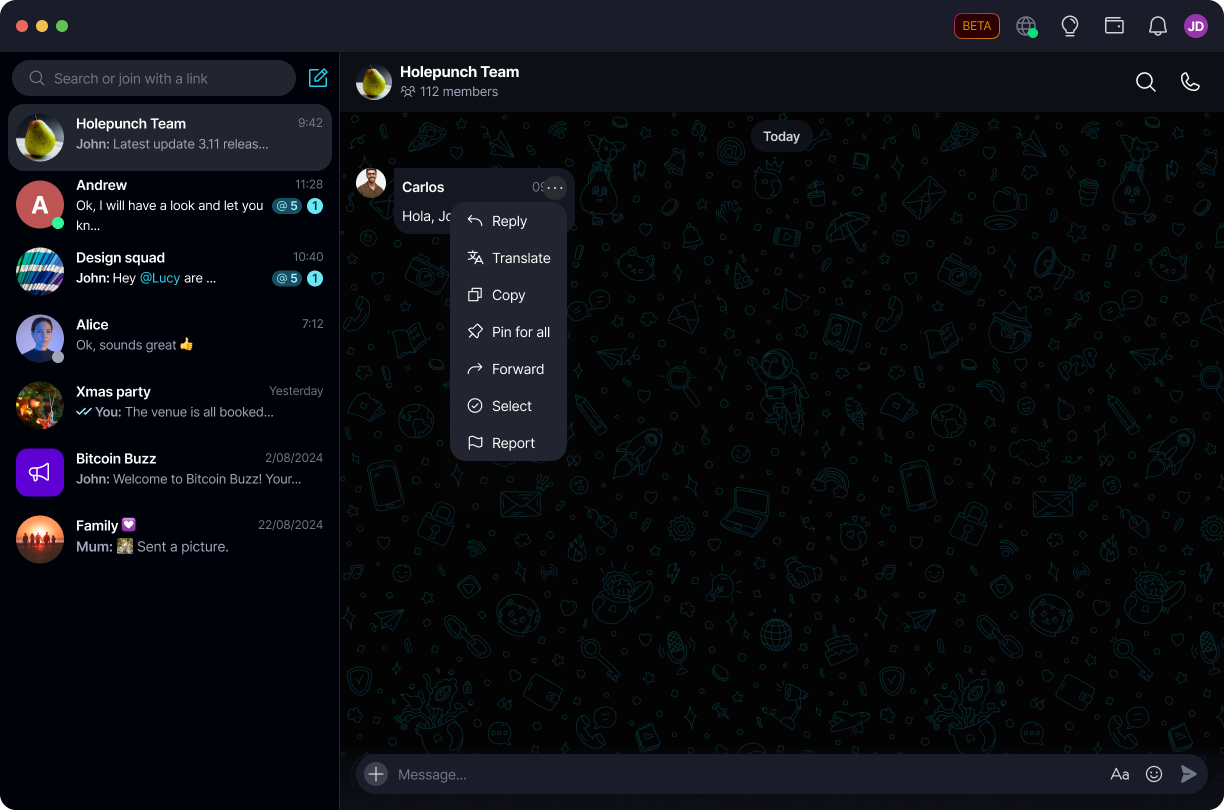
Open the action menu on the message you want to translate and select Translate.
Hover over a received text message, click the three dots '[...]' / select 'Translate'.
Long-press a received text message / tap 'Translate'.
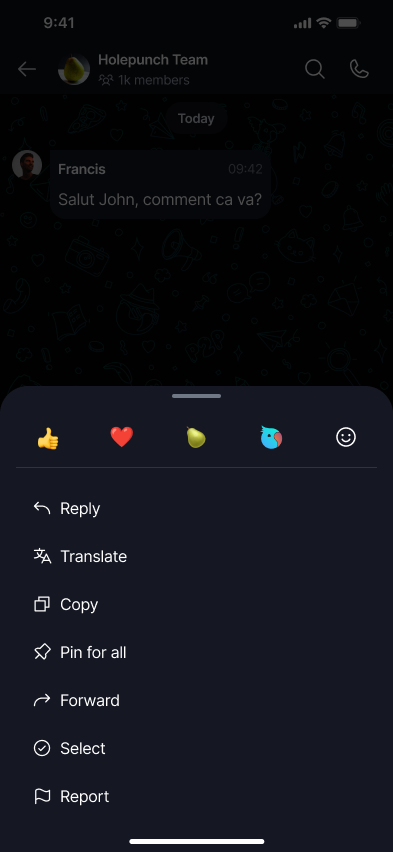
Translate is not shown for messages that cannot be translated, such as files, media-only messages, empty messages, or unsupported message types.
Choose your languages
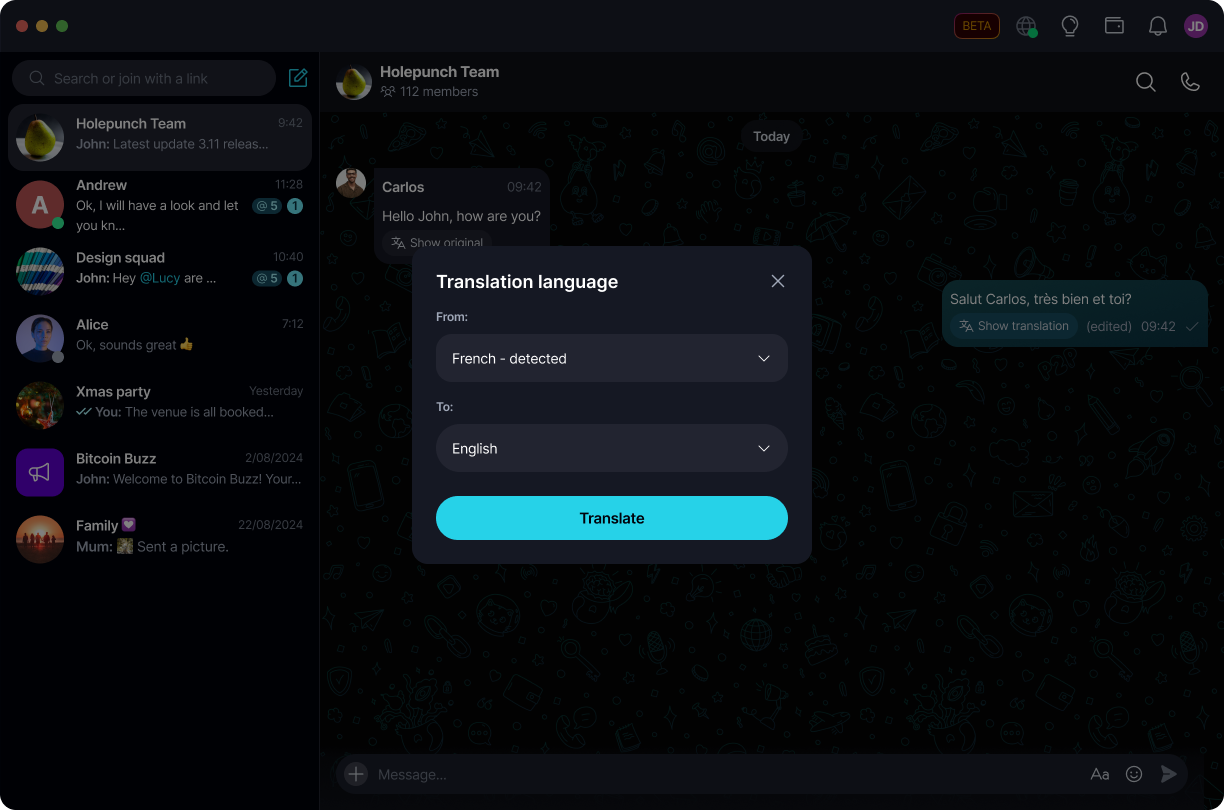
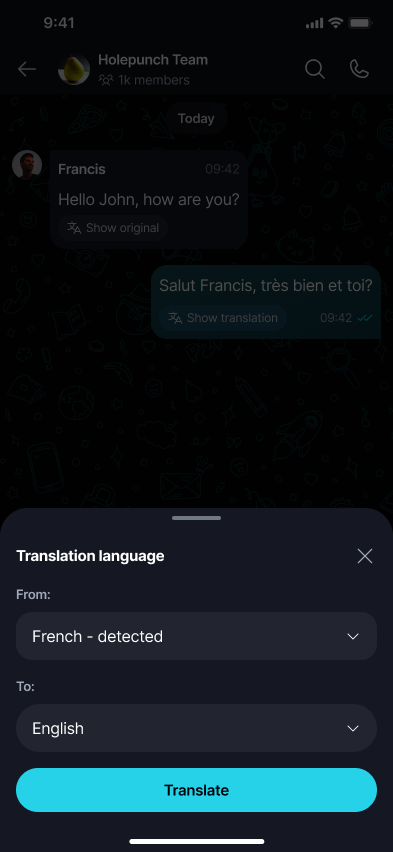
Keet detects the message language automatically and sets your target language to your app/device language when it's supported. You can change either language before translating.
Open the Translation language options before translating.
Open the Translation language sheet before translating.
Change the source language
If detection is wrong, change the From language before translating.
Open the From dropdown and pick the correct source language.
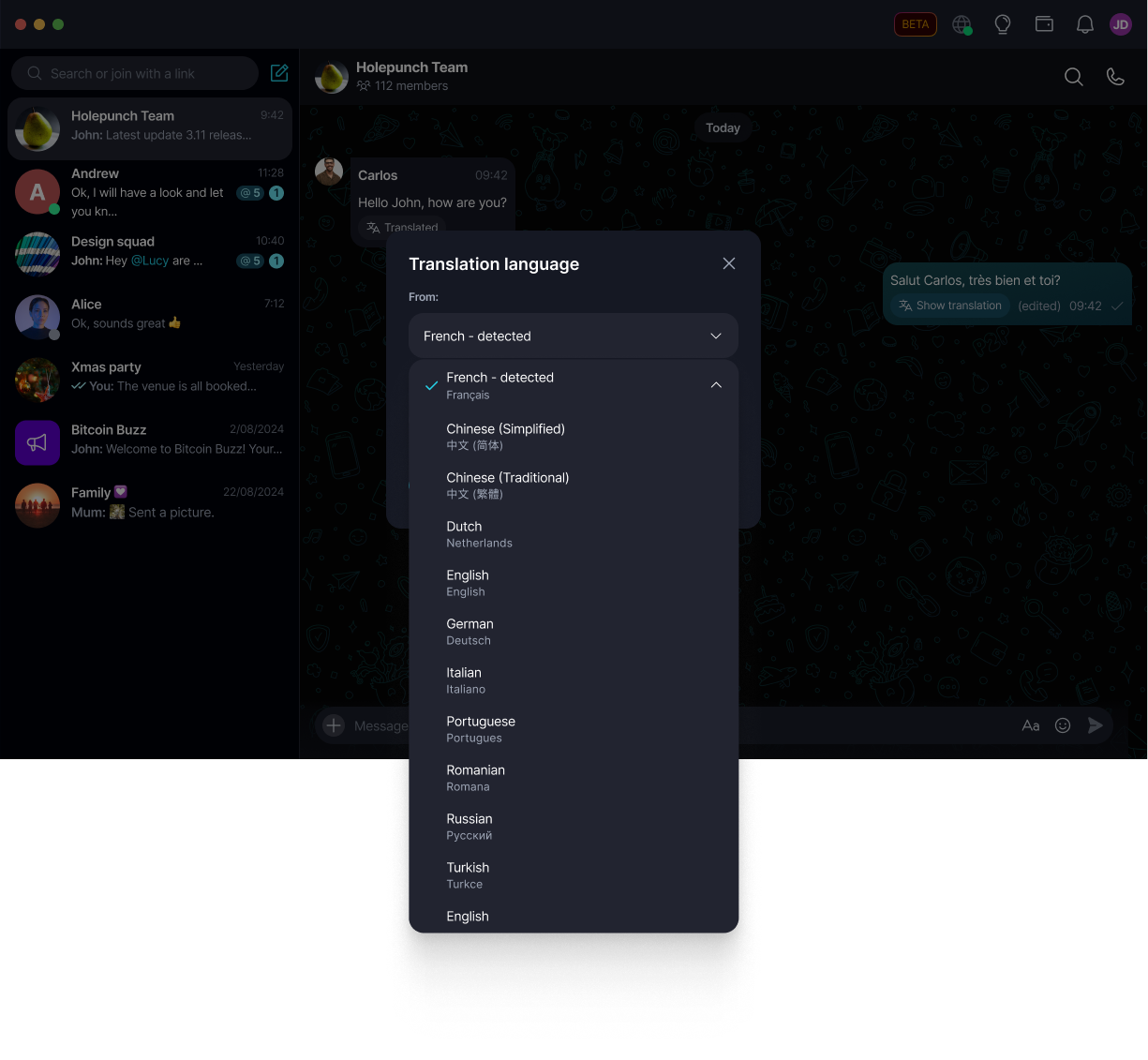
Open the From picker and pick the correct source language.
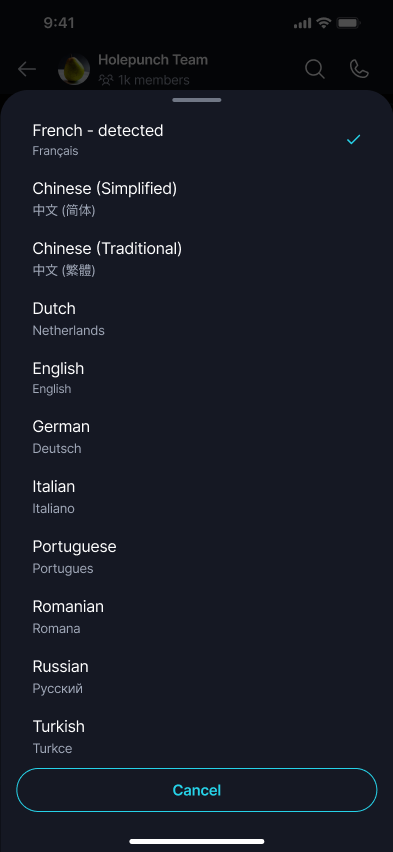
Change the target language
You can also change the To language from the same options.
Open the To dropdown and pick your preferred target language.
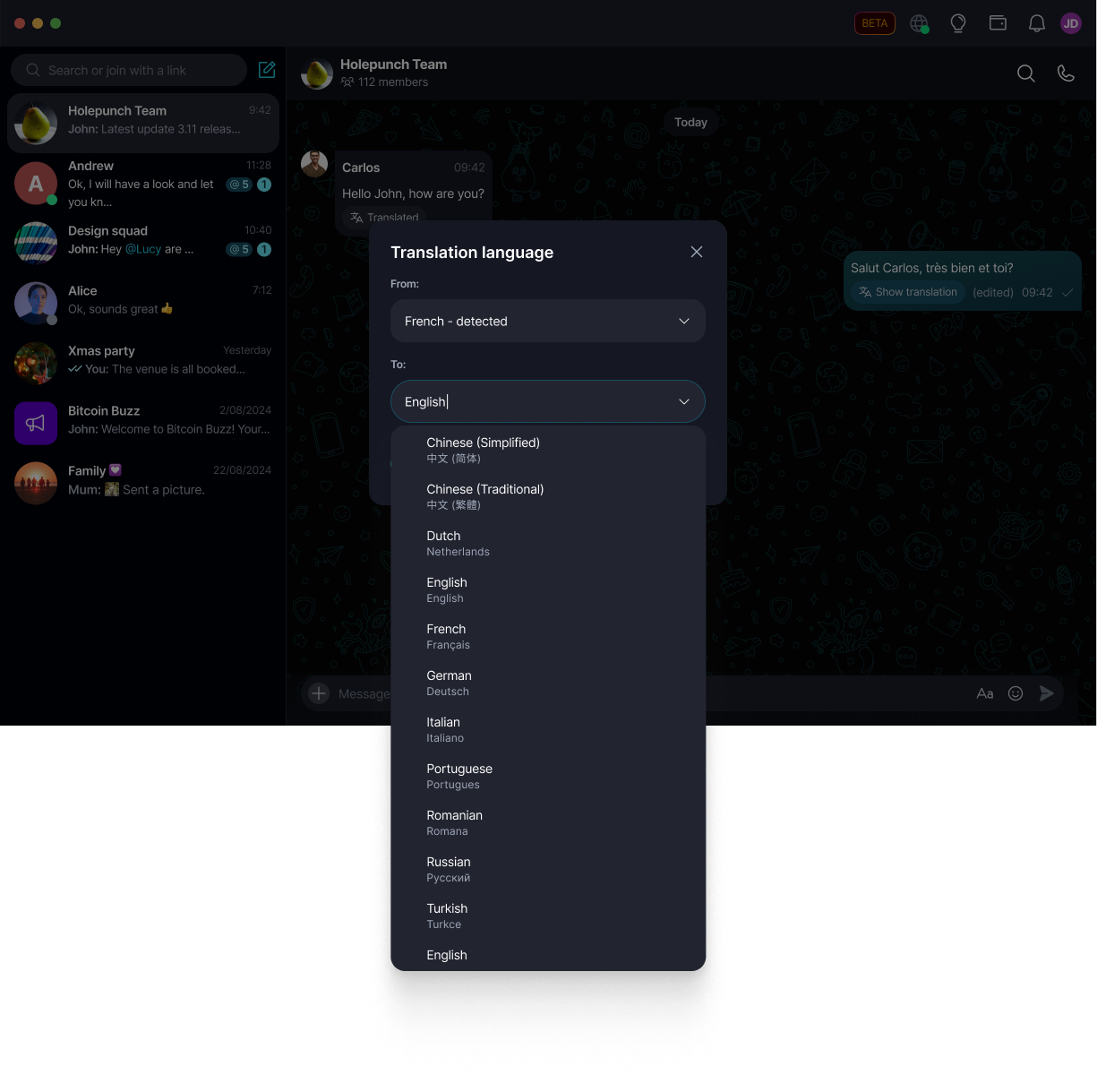
Open the To picker and pick your preferred target language.
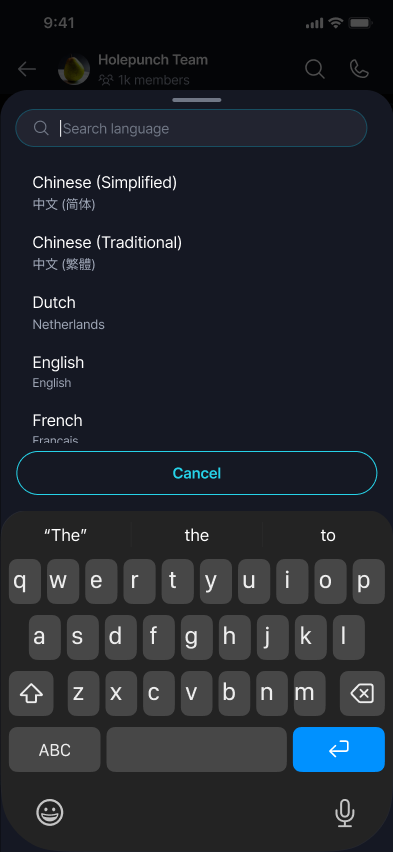
Download the language pair (first time only)
If language detection, downloading, or translation fails, Keet shows a clear error and keeps the original message visible. If the selected language pair is unsupported, you'll see an unsupported language message instead. ⚠️
If the source → target language pair isn't already on your device, Keet downloads it once. This may take a moment and is only needed the first time you use that pair.
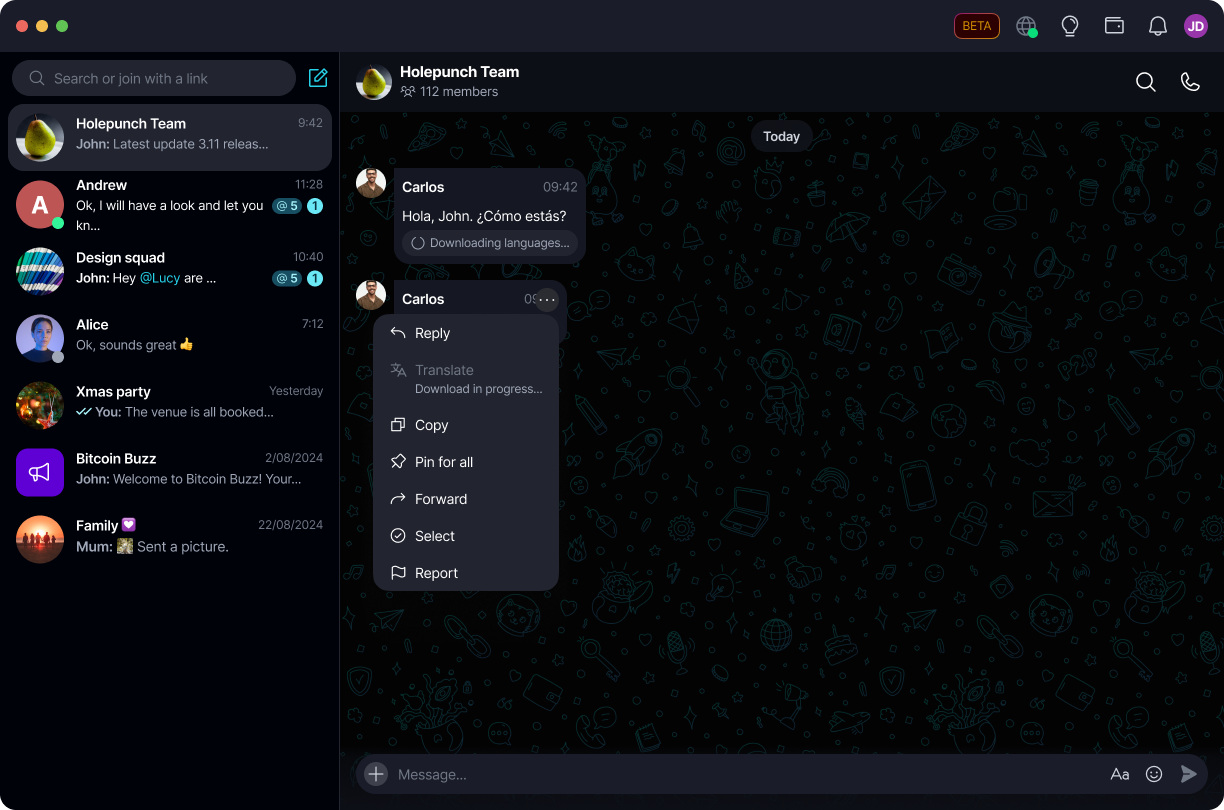
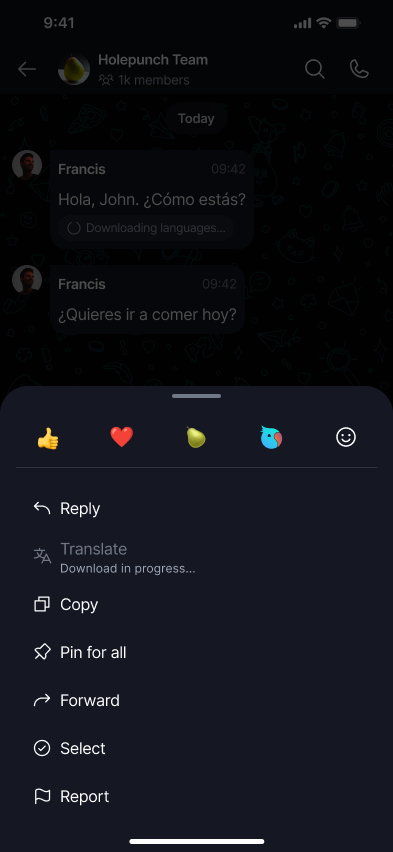
Downloaded language pairs are remembered on your device, so the same pair won't need to be downloaded again. ⬇️
Read the translation
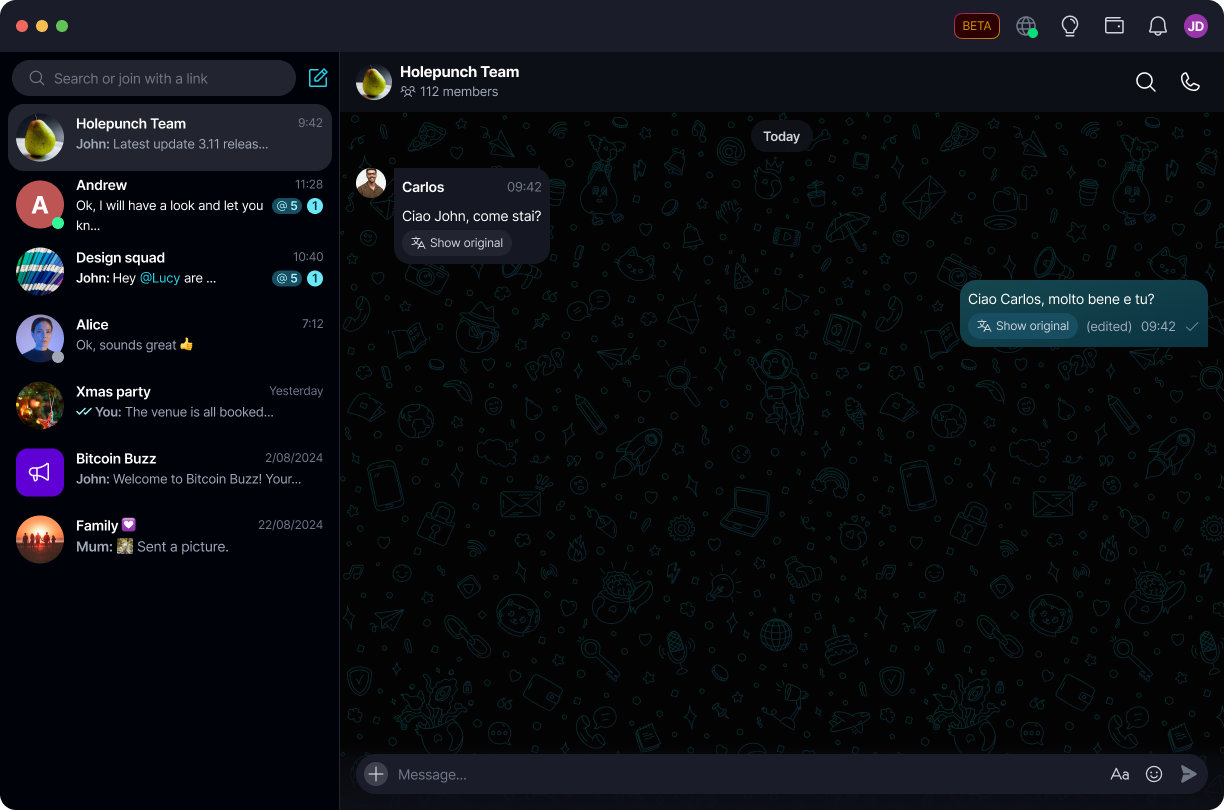
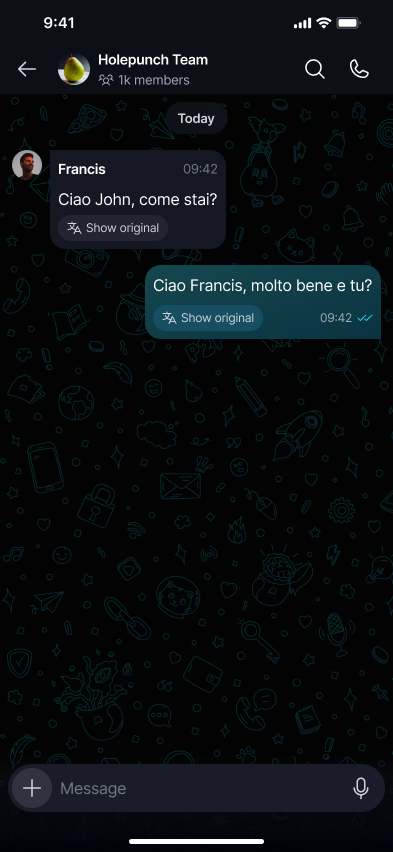
Once the language pair is ready, the translated text appears inside the original message bubble.
Change or revert a translation
A translation icon appears on translated messages. Tap or click it to open Translation options, where you can:
- Show the original message again
- Change the target translation language
- Translate again using the selected language
Open the action menu on a translated message to switch between 'Show original' and 'Change translation language'.
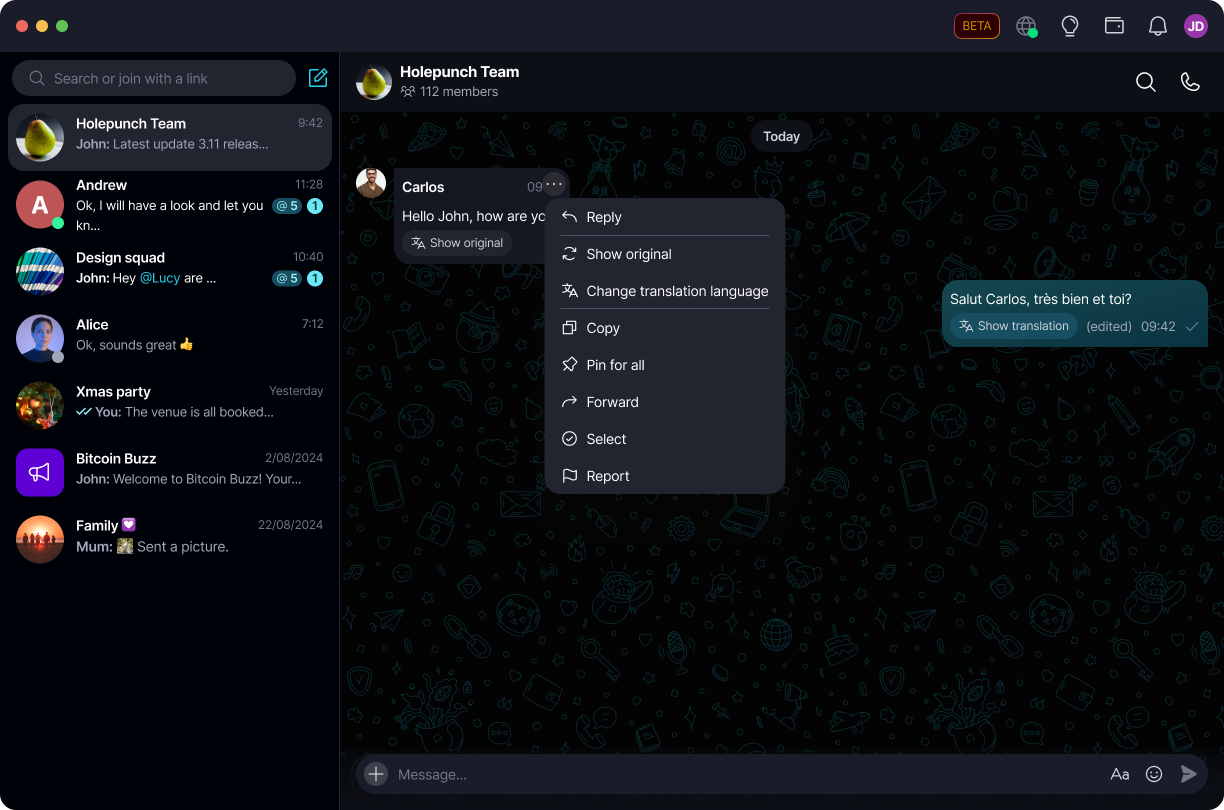
Open the action menu on a translated message to switch between 'Show original' and 'Change translation language'.
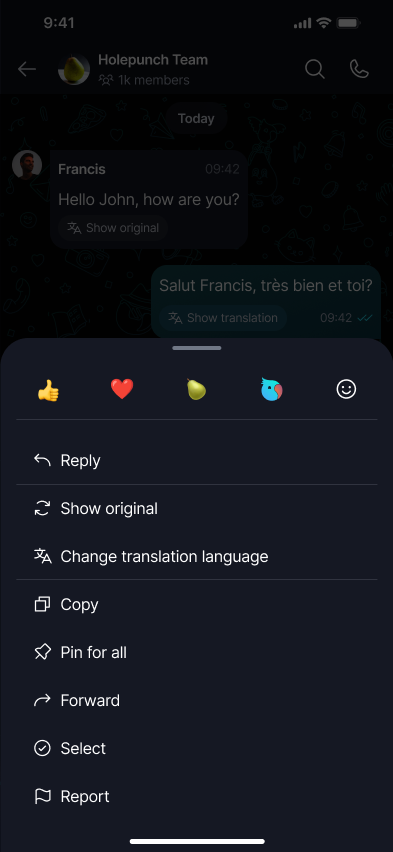
The original message is always kept, so you can show it again at any time.